.png)
Whether you need a bit of help, or you want to share how you’ve made your Dropbox work for you, you’ll need to know how to post on the Community. There two ways to do that and they’re both pretty easy!
Replying to a Conversation?
The first way to post is to reply to a conversation. Scroll down to the bottom until you see this section to “Leave a comment”
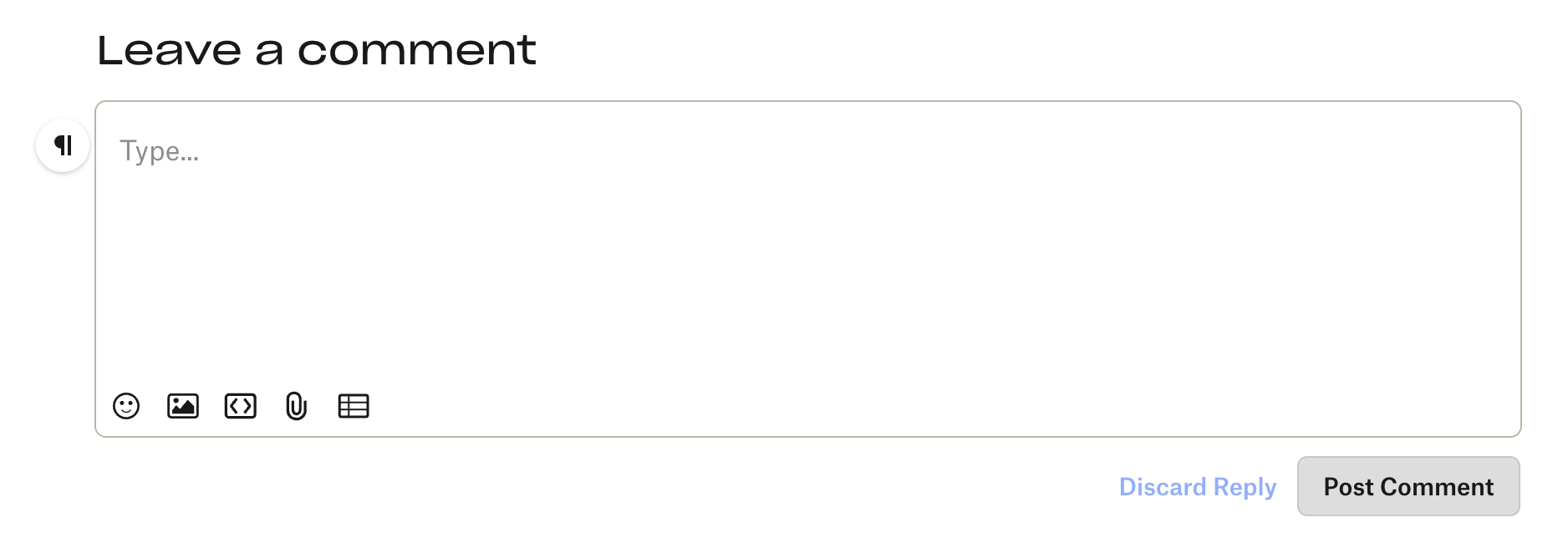
Simply type in your reply and click ‘Post Comment’ to dive straight in!
Use the edit options to make it very emphazised, in italics or…
Add in links using the link button and upload media by selecting the ‘photos’ and ‘videos’ buttons.
Top tip: Click the Paragraph sign or the pilcrow ¶ to the left of what you are typing to access additional formatting!
Starting your own Thread is Easy!
To get started, head to the category that best matches your question or feedback, then select Ask A Question.
When creating your post, you’ll be asked to:
- Add a subject – Keep it short, clear, and to the point so others can quickly understand what your post is about.
- Describe your issue or question – Include as much detail as possible about what you're experiencing, what you're trying to do, and any troubleshooting steps you've already tried. The more information you provide, the easier it will be for Community members and Dropbox support to understand your situation and offer accurate help.
Don't forget to hit POST COMMENT for it to publish on the community!

And that’s it! Why not give it a try to ask any questions or just say hello 🐧.