After spending almost an entire week with Dropbox tech support, uninstalling, re-installing, cleaning registries, running command scripts, MULTIPLE TIMES... We were getting nowhere. So, I did some serious research on the web looking for ways to locate and fix Windows Right-Click "Context Menus".
I found a utility called ShellExView by Nirsoft. Which pointed to another page ( fix-slow-right-click-crashes-shell-extensions ) with some more explanation on how to use it.
Apparently, the problem was that, for some strange reason, as you can see in the screenshot below, the Dropbox “ContextMenuHandler Class” was marked as “Disabled”.
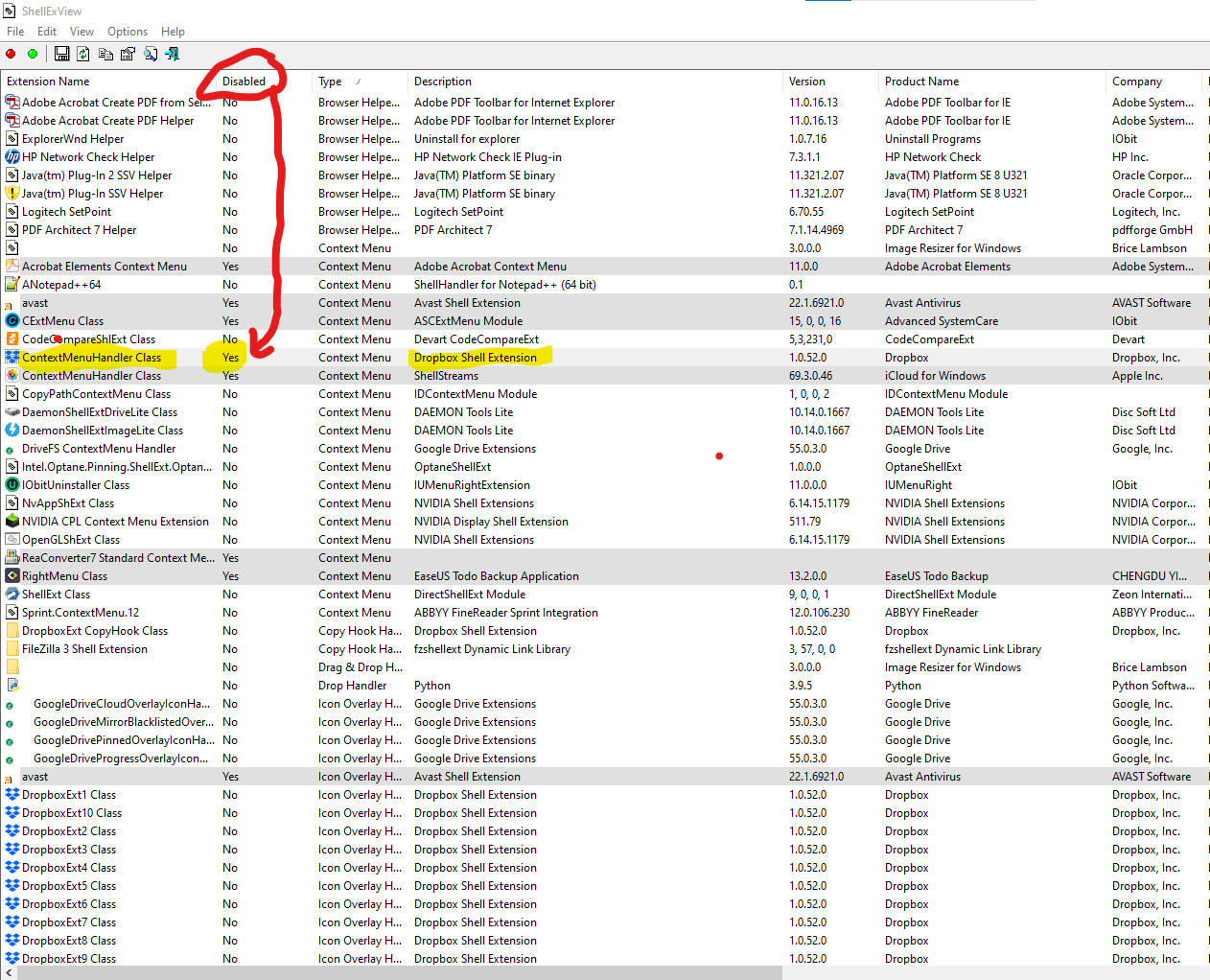
I simply did a Right-Clickover it, and selected to “Enable selected items”. Then re-started Explorer using ShellExView's Ctrl+E option to restart the Windows shell. Please NOTE... Restarting the Explorer shell is an essential step. This should NOT be skipped.
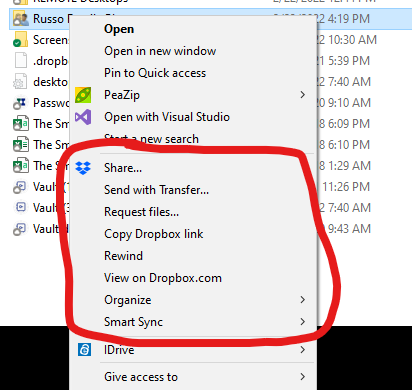
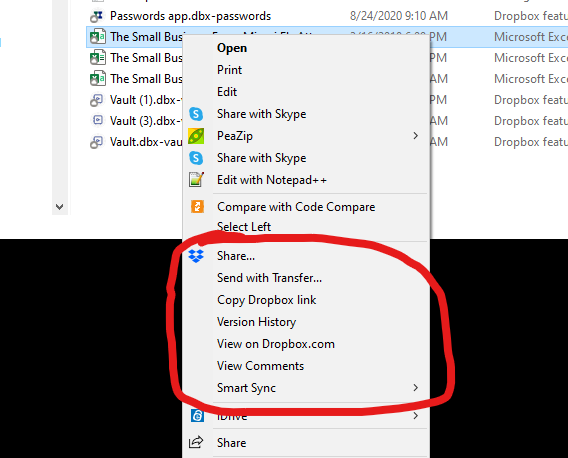
And… VOILA!!! After a few seconds... ALL of the Dropbox Context Menu items magically now appear!!!
For FOLDERS, it shows like this:
And for FILES, it looks like this:
Hope this helps!
All the best,
Jacob