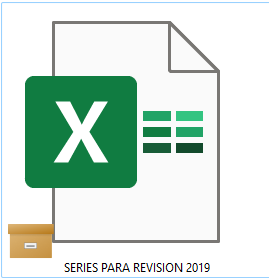
What does this orange box icon means? I'm on desktop, windows 11.
@rdb0122 wrote: So this isn't just an Excel issue, ... Dropbox needs to look into this though ...
So this isn't just an Excel issue, ... Dropbox needs to look into this though ...
It's not a Dropbox icon. It's from OneDrive. You likely have OneDrive and Dropbox trying to sync the same data, which will never work correctly.
I read several of the entries, trying to get rid of the file box on all my dropbox files, because it's super annoying that you can't open your files unless you're online. I didn't see the solution, but I found one.
If the dropbox logo is in the bottom right corner near the time (Windows) right click it, then when the pop up comes up click on your initials in the top right corner, a drop down box will open and click on preferences. A new window will pop up for dropbox preferences, click on the sync tab. There is a section that says "save hard drive space automatically" yes or no. I had no checked, which is what you want, but then there is a drop down selection to the right that allows you to choose "available offline" or "online-only" choose available offline. I had online-only selected and as soon as I switched it to available offline all the little boxes went away.
There maybe another way to get to dropbox preferences, above is how I found it.
Hi,
I see that there already is a thread regarding "Orange box icon meaning". It seems OneDrive is conflicting with dropbox, blocking synchronisation (I cannot open the files with that orange box icon from my computer).
Problem is I do not use Onedrive and do not have it installed, which means I doubt uninstalling it will solve anything.
Is there another fix for this?
Hey @drac69!
Just to clarify, did you go to your device's Start menu, typed in "OneDrive" and nothing appears?
Yes!
Thanks. That was the problem. I do not know when it happened but it was set to available offline then switched to on line. My files are back now!
Thank you for posting. This saved me a great deal of time. I was exceedingly frustrating to not being able to open the files. I disabled the computer from one-drive and everything seems to be working OK now.
I have one of these in the lower right corner of every file and I cannot open them or make this go away no matter how I set syncing. Any ideas?
Hey @mhuppertz - sorry to hear you're having issues with this.
This icon doesn't come from Dropbox, but OneDrive. I've merged your post into this discussion so that you can have a look for more information.
Let me know if you have any other questions.
One drive is not installed. Can't figure it out.
Hey @mhuppertz, can you try these steps here, to see if they help?
screen shott
Hi can anyone help me, the file with this box icon fails to open
Hey @1775468, thanks for reaching out to the Dropbox Community.
The icons on your files are not really Dropbox icons, but they come from OneDrive.
Can you try to disable OneDrive and let us know if that helps?
I've been struggling with these orange boxes for months. Per this thread, I uninstalled OneDrive and restarted my computer. Problem persisted. If I copy a folder to my laptop, the icon disappears from any file in the foldere. If I put the folder back into Dropbox, the icon reappears and causes me to get an error message when trying to open the file. What next?
Hey @Kevin-54 - sorry to hear you're having issues with this.
This orange box icon comes from One Drive not Dropbox. Are you 100% sure you completely removed it from your computer?
Let us know more and we'll take it from there.
Definitely uninstalled OneDrive - I double checked this morning.
Thanks for the suggestions regarding checking my sync options but the options you mentioned do not show up in the drop down menu. I did check to see if any files were set to 'selective sync' and none were.
Could you also send us a full page screenshot of where you're spotting the icon @Kevin-54?
Over a 4-6 week period I spent about 30 hours on the phone and sent about a dozen screen captures to a string of Dropbox support staff, each of whom escalated the problem to someone new, resulting in me having to start over explaining the problem. In the end, I was told it was a problem with an 'an extension' or OneDrive and they couldn't help - they refused to proceed further.
Hey @Kevin-54, sorry to hear about your experience.
Can you please send me your last escalated ticket, so I can take a look?
This is the last ticket # I kept (Ticket #23025473) - at this point the conversation had gone on for 3 weeks because it took each support person at least 24 and often 36 hours to respond, usually asking for yet another screenshot of something. I'd estimate that 1/2 of the support responses made it clear the person had not read what I sent as they often asked for information they already had.
Thanks for the ticket ID and your feedback on this @Kevin-54 - much appreciated.
I can see that it's closed since January. If you'd like to look into this issue with our support team again, you'll need to open a new ticket.
As for the issue at hand now, could you try creating a new OS profile on your computer and try to install and use the Dropbox desktop app there for testing purposes?
The issue at hand, is the exact same issue Dropbox support spent more than a month attempting to resolve before coming to the conclusion the problem wasn't specifically related to Dropbox but to another extension, app or program on my laptop and closing the ticket.
In the meantime, I had read this thread, assumed it was OneDrive and uninstalled it. Then I uninstalled Dropbox and reinstalled it - all to no avail. Is there ANY chance I'll get better support if I open another ticket? After all, at least 5 people were involved last time.
As to your suggestion to create a new OS profile on my laptop - I have absolutely NO idea how to go about doing that, much less how to open Dropbox using the new profile if I could figure out how to do it.
. (The whole reason I removed OneDrive).
Hope it’s OK to jump in here, @Kevin-54.
To create a new user profile on your computer, you can follow these steps.
Other than that, I can suggest checking out this suggestion to make sure the Dropbox overlay icons are prioritized and see if the other icon will disappear after following them.
The icon is not the problem, it is merely a symptom. The problem is the that nearly half of the files I have stored in Dropbox cannot be opened in the desktop app. Supposedly, OneDrive created the filebox icon, that was why I completely deleted OneDrive and uninstalled and then reinstalled Dropbox - files still can't be opened. Nearly 2 months of slow motion help from Dropbox support staff has yet to yield solution.
Hi from me too @Kevin-54!
One thing that I want to ask is if this behavior of files not opening correctly, happens with all of your files, or just some specific ones?
After following the steps Nancy provided above, you should be able to see Dropbox icons next to your files, instead of the OneDrive ones you're currently seeing.
The reason I'm asking you to do this, is to identify if the files that fail to preview sync are online-only or available offline.
Even if you can't see any icons there, can you try changing the files to available offline, and giving it a go again?
This problem just occurred on my computer. I first disabled and then uninstalled OneDrive and restarted my computer. However, this had no effect: I still have the filebox icon superimposed on the lower left of my files, and they will not open. Do you have any other suggestions?
@MarinRob wrote: I still have the filebox icon superimposed on the lower left of my files, and they will not open. Do you have any other suggestions?
I still have the filebox icon superimposed on the lower left of my files, and they will not open. Do you have any other suggestions?
As the icon comes from OneDrive/Windows 11, I'd ask on the Microsoft support forums.
Restarting my computer helps get rid of the brown box.
I've uninstalled OneDrive and the briefcase icons remain. I'm also not getting any Dropbox options when I right-click a folder or file. I'm unable to request files for keeping offline, and all other context menu options are missing.