When starting up my computer and logging in to the user account, I do NOT want Dropbox to be starting, at all. The files Dropbox needs are not even accessible unless I as the user take a particular step to unlock them. If I want to, I can unlock the files and THEN manually start Dropbox. I understand that no syncing will happen until after Dropbox is manually started.
I have taken the following steps:
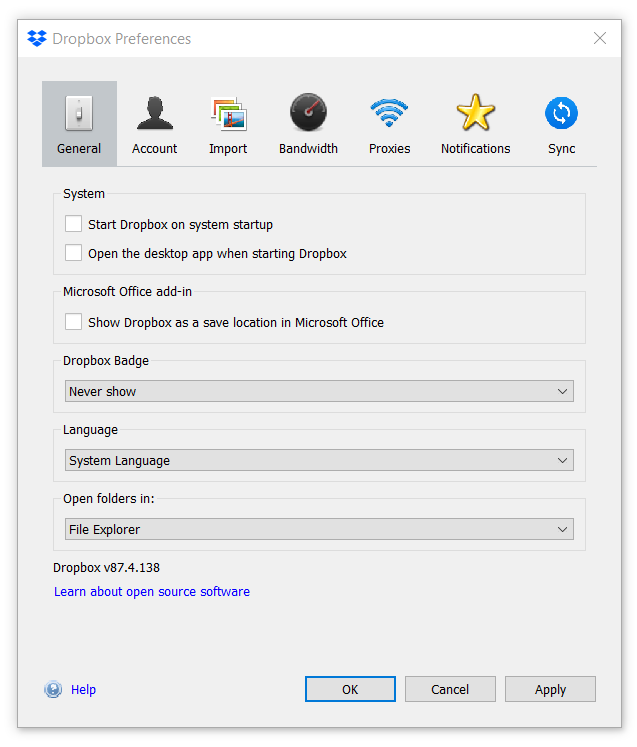
In Dropbox Preferences, General:
-"Start Dropbox on system startup" is UNCHECKED.
-"Show Dropbox as a save location in Microsoft Office" is UNCHECKED.
-Dropbox Badge: Never Show
-Open folders in: File Explorer
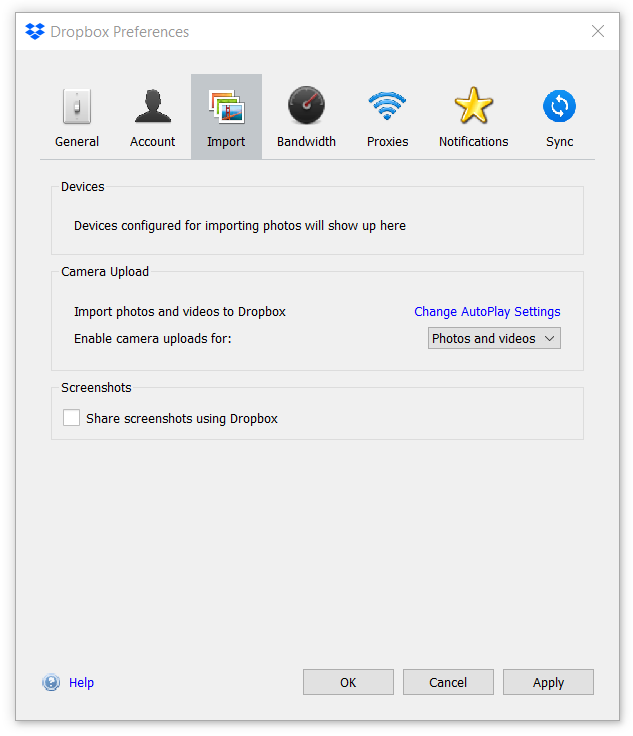
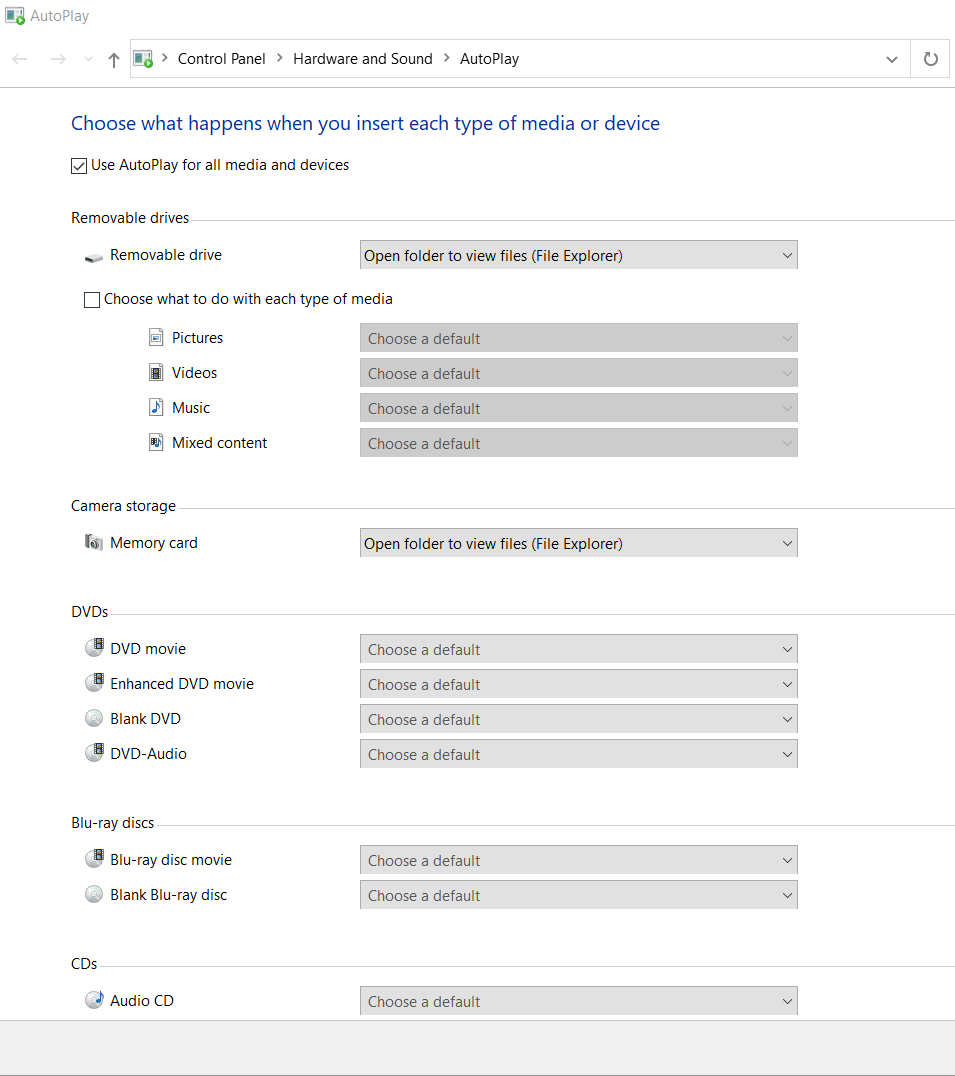
Under Import, "Share screenshots using Dropbox" is UNCHECKED and the AutoPlay settings all have "Open folder to view files (File Explorer)" instead of Dropbox import.
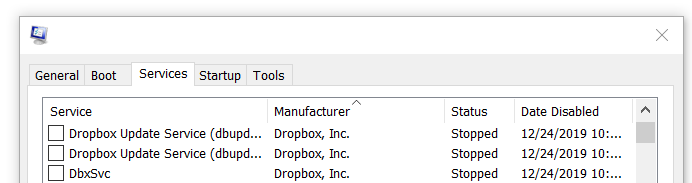
In msconfig's "services" tab, I have unchecked the three Dropbox services.
In Task Scheduler, the "DropboxUpdateTaskMachineCore" task has had the log on trigger removed, the user changed to the local account and "Run only when the user is logged on" instead of "Run whether user is logged on or not" selected.
There are no tasks, Dropbox or otherwise, in the Startup tab of Task Manager or under Start Menu/Programs/Startup (for All Users nor for the specific user).
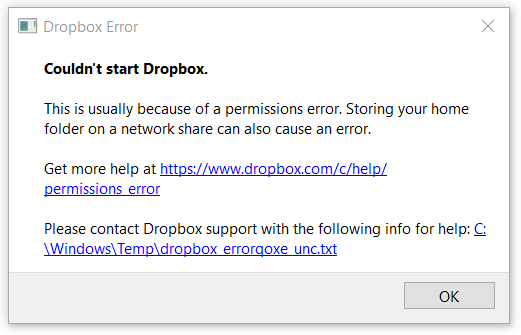
Yet every time on login, I get a popup "Dropbox Error: Couldn't start Dropbox. This is usually because of a permissions error. Storing your home folder on a network share can also cause an error."
Yes, it is clearly a permissions error, but intentionally. I DON'T WANT DROPBOX TO BE STARTING UP AT ALL unless I manually start it. How can I disable Dropbox from even trying to start on login?
This is on a new install of Windows 10.
Thanks!